
Getting started
The application stores both built-in and user scripts in user's home directory (%localappdata% on Windows and ~/ on Linux) in addin subdirectory. Such scripts are called addins in the application. By default the application provides few built-in scripts which users may use in their scripts or base their scripts upon them. Adding your script to this directory either manually or by application wizard will cause the application to display the script in addin section in settings window. The first time an addin is added, it has to be enabled in the settings - only then it will take an effect.
Addin structure
Each addin will reside in it's own directory with any user picked name. Inside the directory, the only requirement is a file named __init__.py must be present. MathVision will look for the following functions in this file:
- initialize() - called when the addin is first enabled
- uninitialize() - called when the addin is disabled
- reload() - called when the addin needs reloading - either by user, or by modifying the code
- mv_addin - a dictionary providing information about the addin, containing following keys:
- name - containing string with displayed name of the addin
- description - containing string with displayed description of the addin
The addin does not disallow presence of other files in the addin directory. It is possible, and recommended, to split addin's code into multiple files to keep your code clean and readable. An example of a typical addin may look as follows:
- cube/ - addin directory
- resources/
- cube.obj - cube model in obj format
- cube.svg - SVG icon for the toolbox
- __init__.py - addin initialization code
- cube.py - main cube object code
- cubemath.py - mathematical operations for the cube
- cubeoperator.py - code for cube operators
- resources/
Creating an addin
Addins may be created manually from the scratch or based on existing addins, or by using an addin wizard available in the application.
While writing your own scripts, at some point you will have to access a scripting API provided by MathVision. A set of classes and functions are provided, and documentation for them may be found at reference section of this manual.
In order to create your own addin, it is require to have knowledge about objects, operators, object properties and more. At the end of this manual you can find creating addin section in which we'll go through the process of coding an entire addin from the scratch.
Enabling an addin
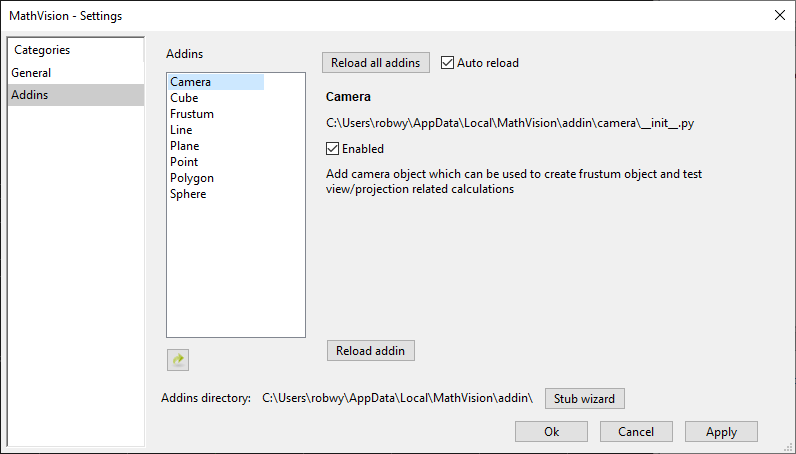
Open the settings window in MathVision top menu bar Tools -> Settings and select Addins category. In the tab
that will open, find your addin on the list and select it. Once selected, the application will display information about the
addin and enabled checkbox - check it and click ok button. Afterwards the addin will be enabled and if it's
addin any objects and/or operators, they will be added to the their corresponding panes.